Create and publish
The wizard turns a blank event into a published one in four steps. This guide covers every option it offers, what each step saves, and how to publish.
Before you start
You need a signed-in Backoffice account with a confirmed email address. Anyone who creates an event can finish it, so no paid package is required.
Two words travel through this guide. Your package decides how many guests you host and how many invitations you send. Your event is the one you create here.
Open Add Event on your events list to start the event wizard. If you want the shortest path instead, read Your first event.
Creating an event step by step
The wizard walks you through four steps: Basics, Details, Program and Review. The first step creates your event, and the rest fill it in.
Fill in the Basics step
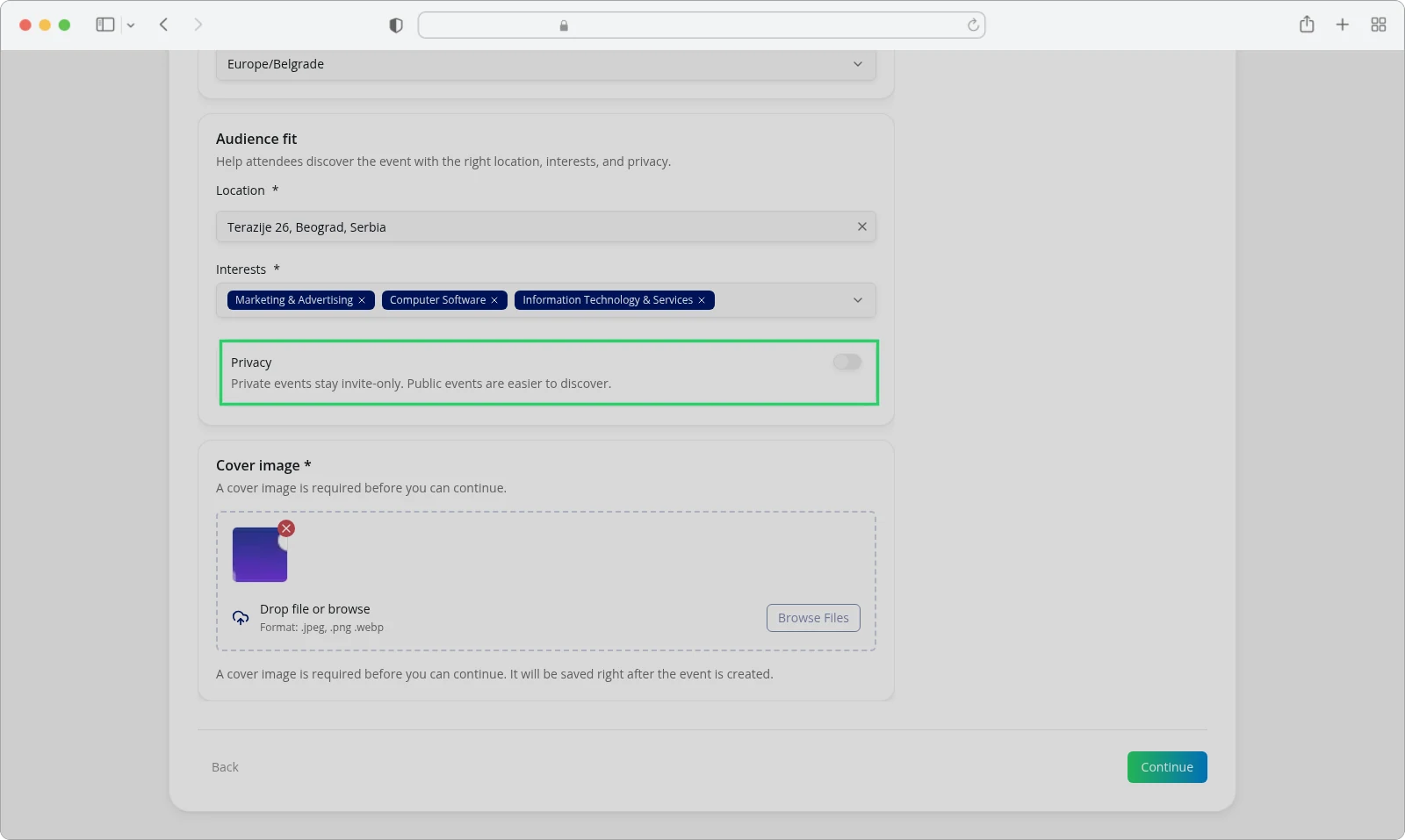
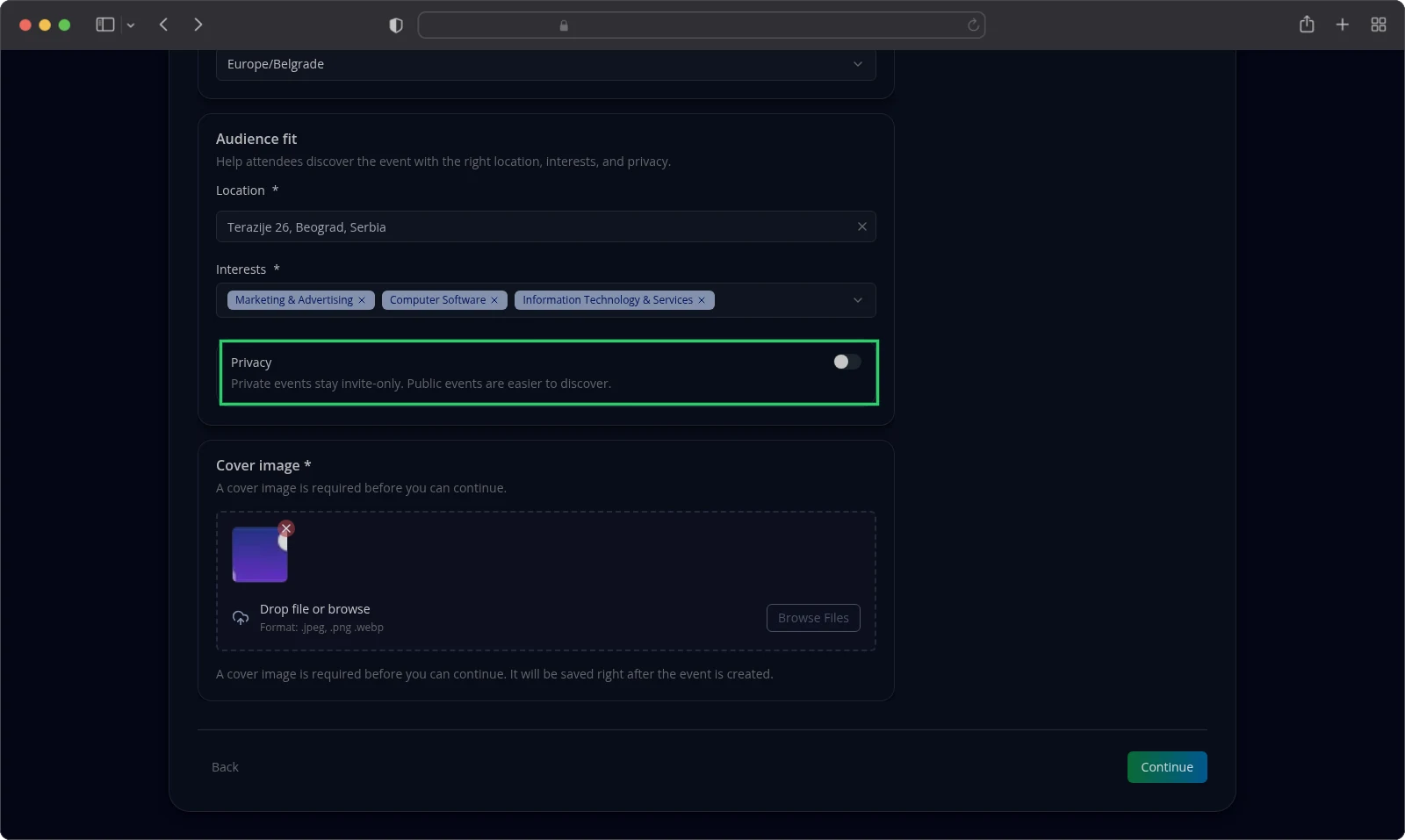
- Choose a Package.
- Enter the Event title.
- Set the Start date and time.
- Set the End date and time.
- Choose a Timezone.
- Choose a Location.
- Choose up to three Interests.
- Leave Privacy off to keep the event public.
- Add a Cover image.
- Select Continue.
The first Continue creates your event and gives it the status DRAFT. Until you do that, the other three steps stay closed and ask you to create the event first.
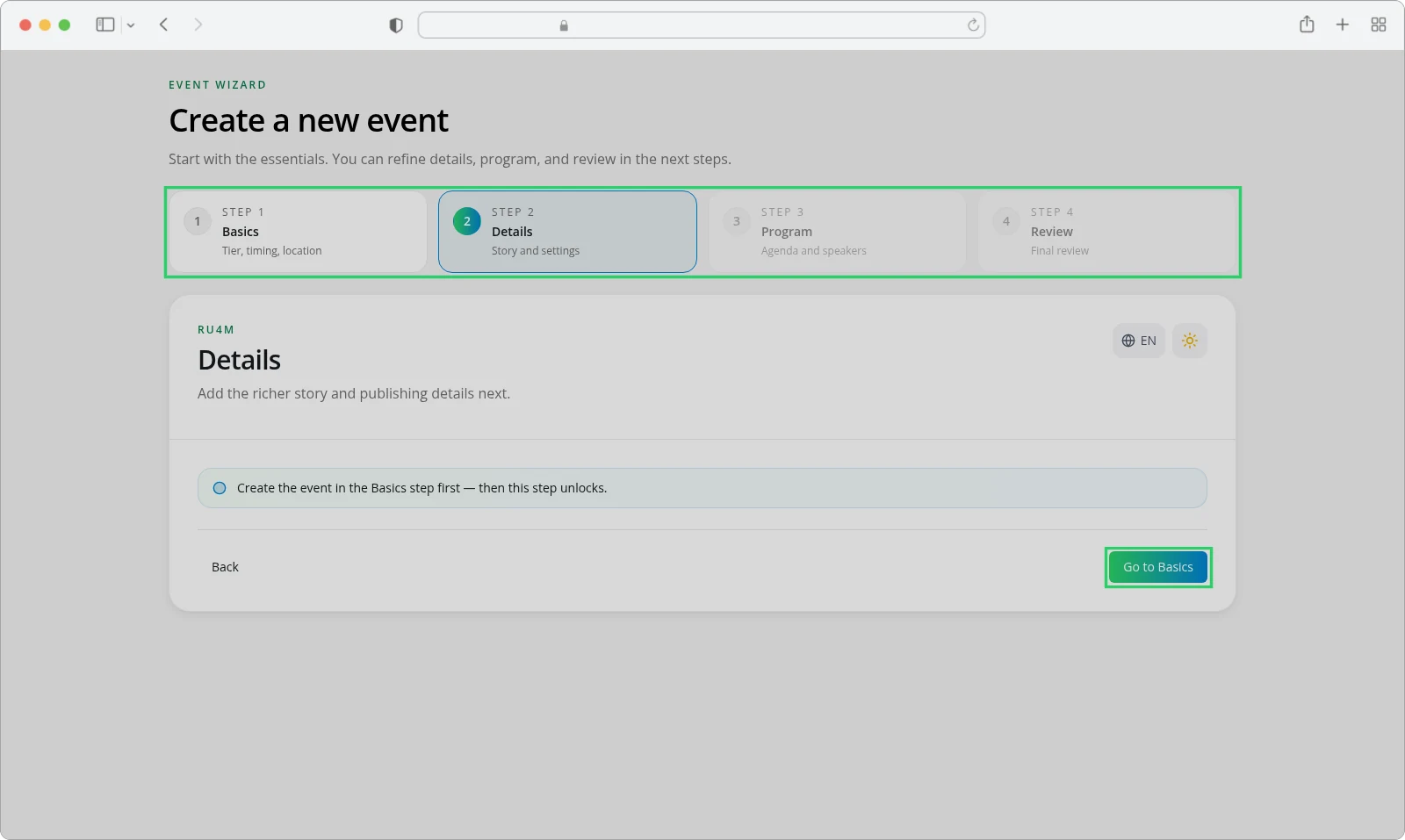
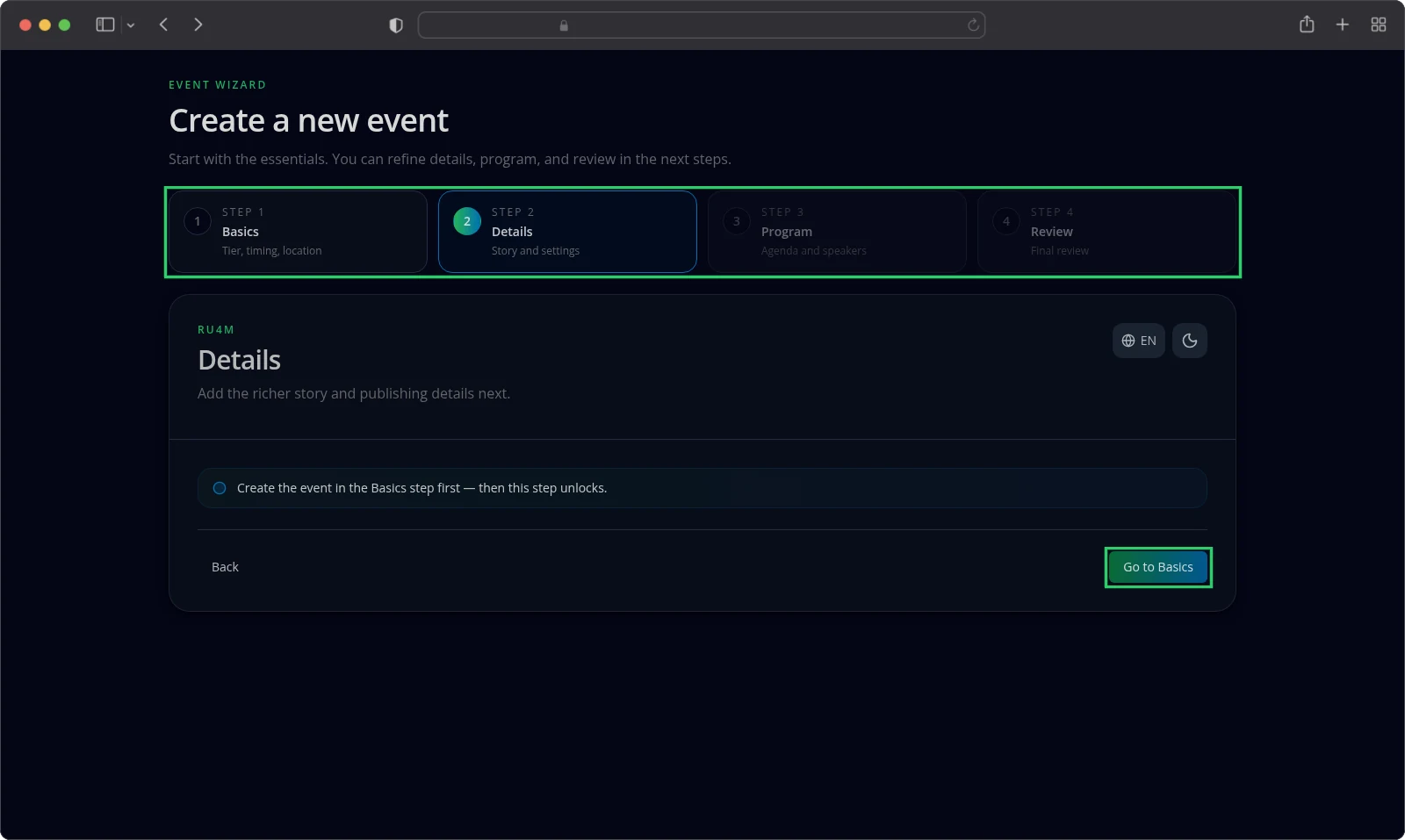
Some fields are strict. The end time must fall after the start time, and a cover image is required before you continue.
The Location field accepts only an address you pick from the list of suggestions. Typing an address on your own leaves the field incomplete.
You can change the Package only until the event exists. After that, move to a larger package from the event page. See Packages and payment for what each one includes.
Add the story and the organizer
The Details step collects what attendees read about your event.
- Enter a Short summary.
- Enter a Full description.
- Choose a Company.
- Enter the Organizer name.
- Select Continue.
The Short summary shows in event lists and previews, and takes up to 250 characters. The Full description appears on the event page and takes up to 2,000 characters.
You must choose a Company before you continue. Choosing one fills the organizer details, and you can still change them for this event.
If the company you want is not in the list, type its name and pick Add company from the results. You can also fill in the company itself at that point.
See Your company profile and Organizer and speakers.
Skip the program when your package has none
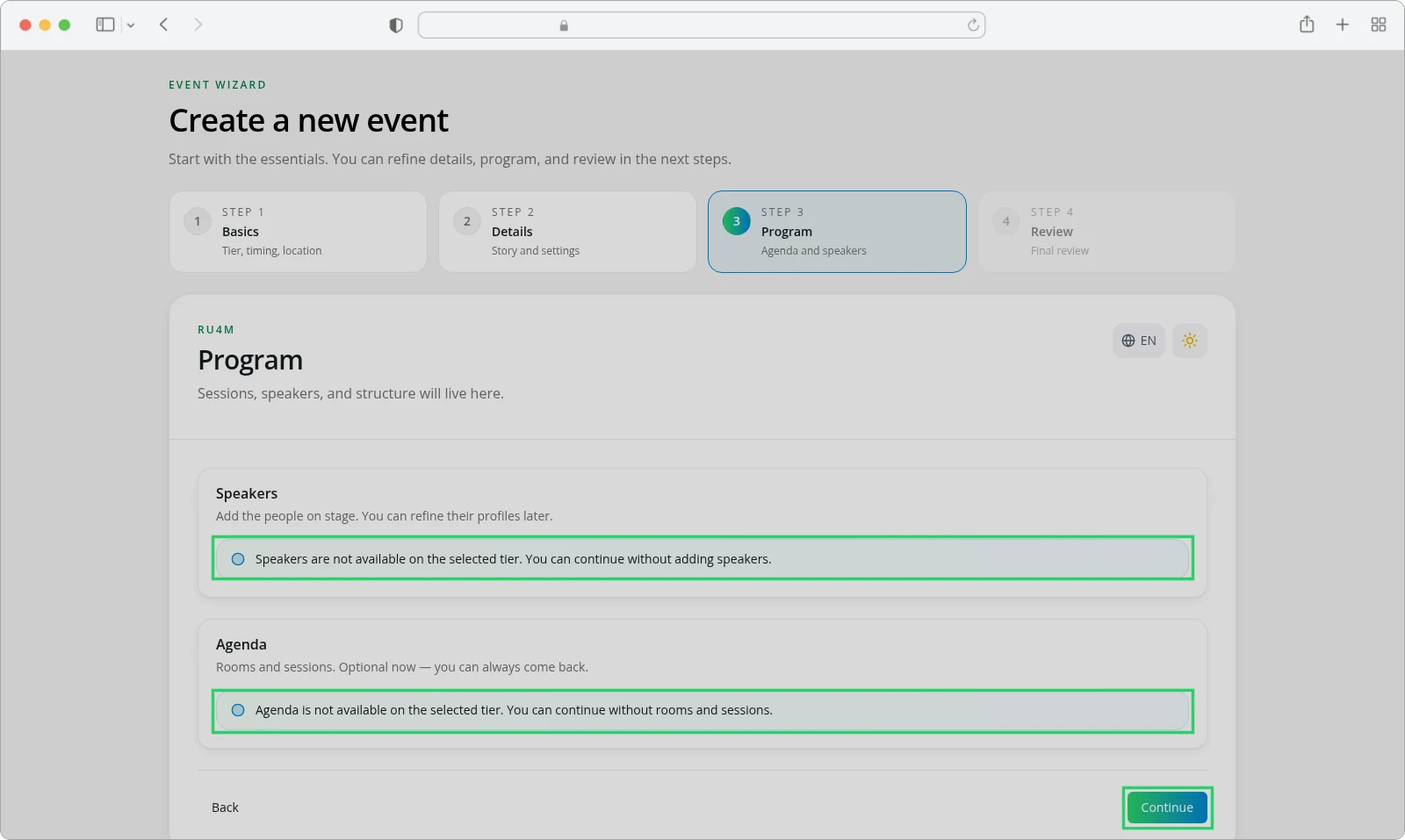
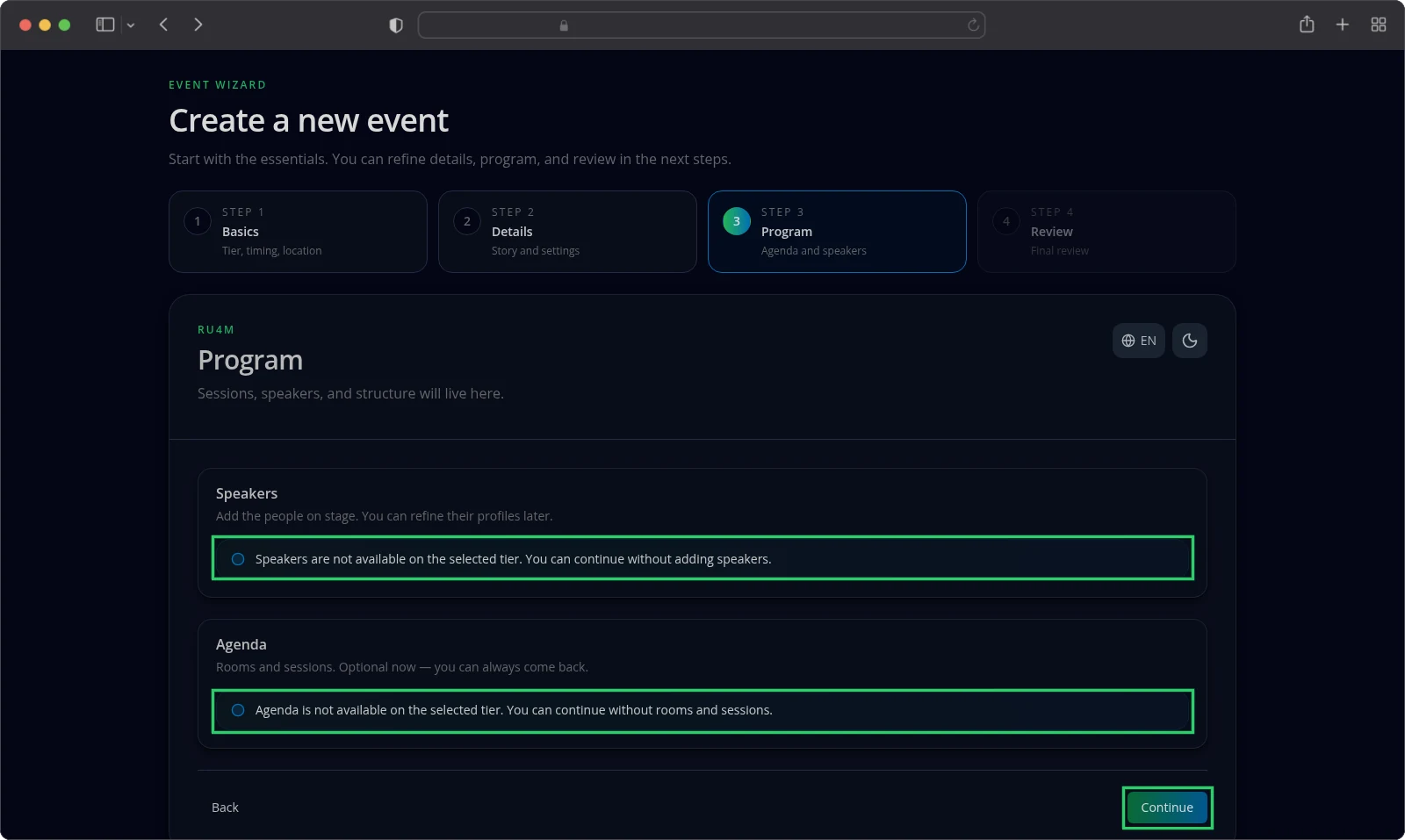
The Program step holds speakers, rooms and sessions. Only some packages include them.
When your package leaves them out, both sections tell you they are not available. Select Continue and move on. To add them later, edit the event on a package that includes them, and upgrade first if yours does not.
See Program and sessions.
Draft, review and continuing later
What each step saves
Each step saves when you select Continue. Only Basics warns you when you leave. On Details and Program, select Continue before you leave, because unsaved changes there are lost without a warning.
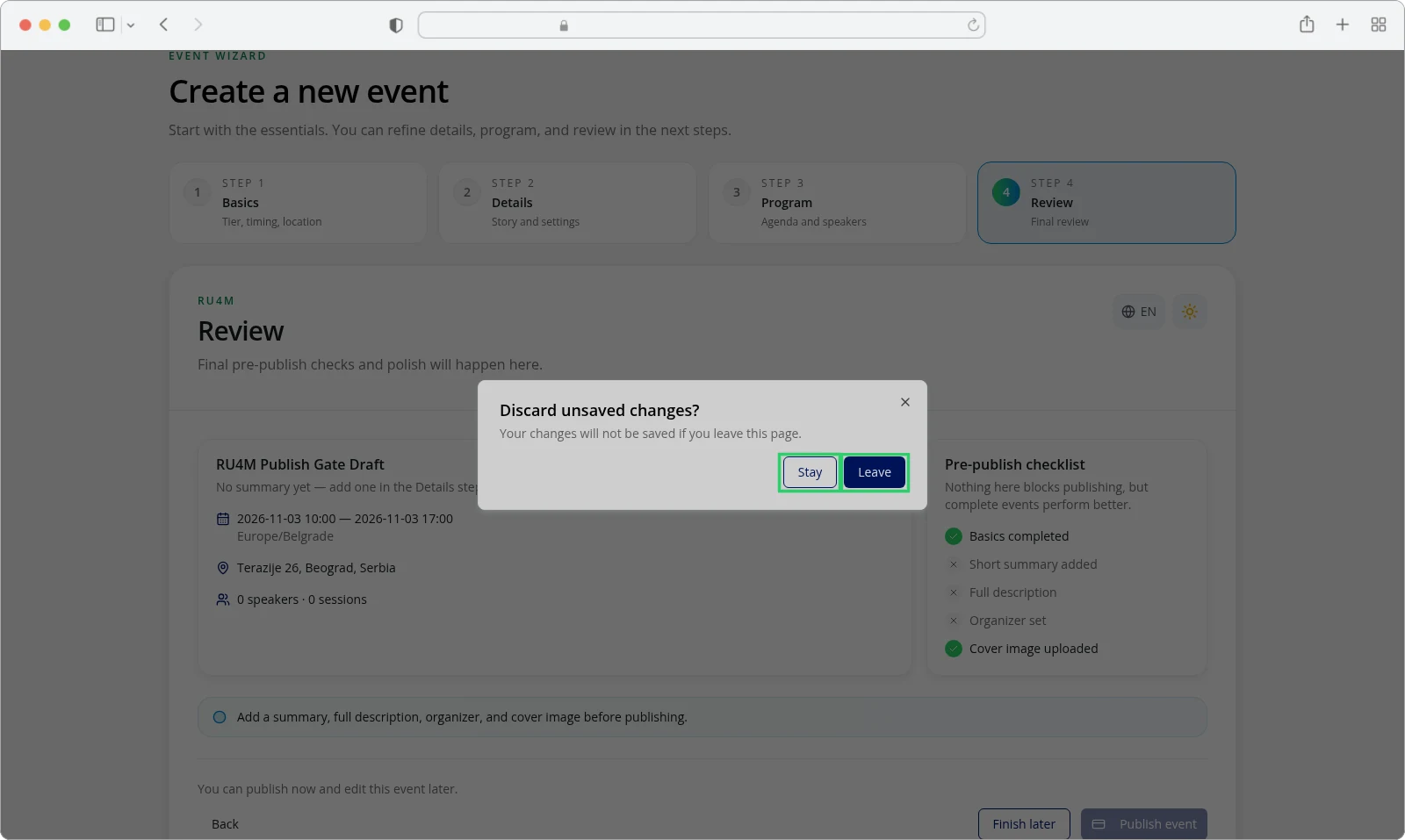
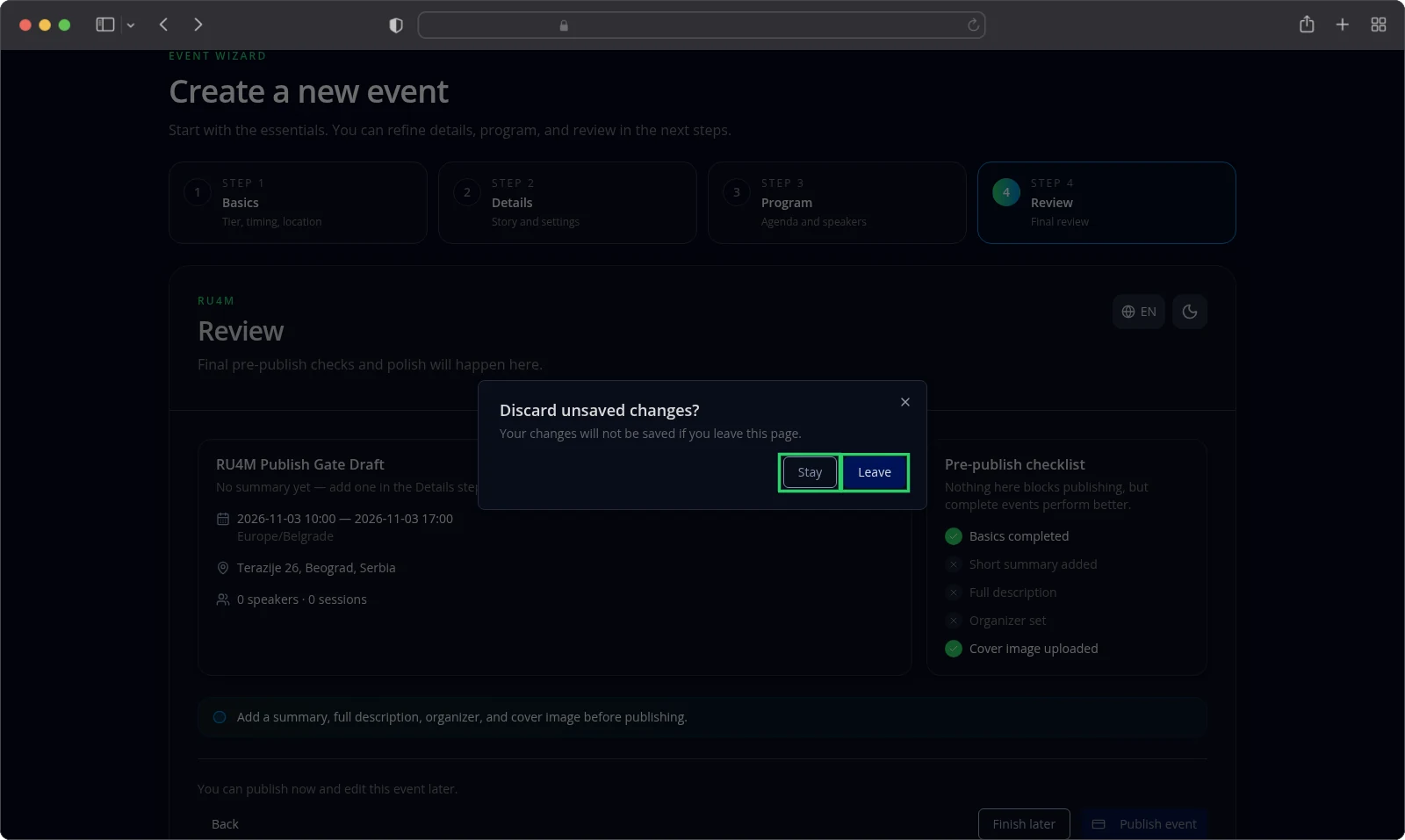
Leaving the Basics step with unsaved changes asks Discard unsaved changes? Choose Stay to keep working, or Leave to drop your changes and go.
Read the review step
The Review step collects everything you entered and shows a Pre-publish checklist.
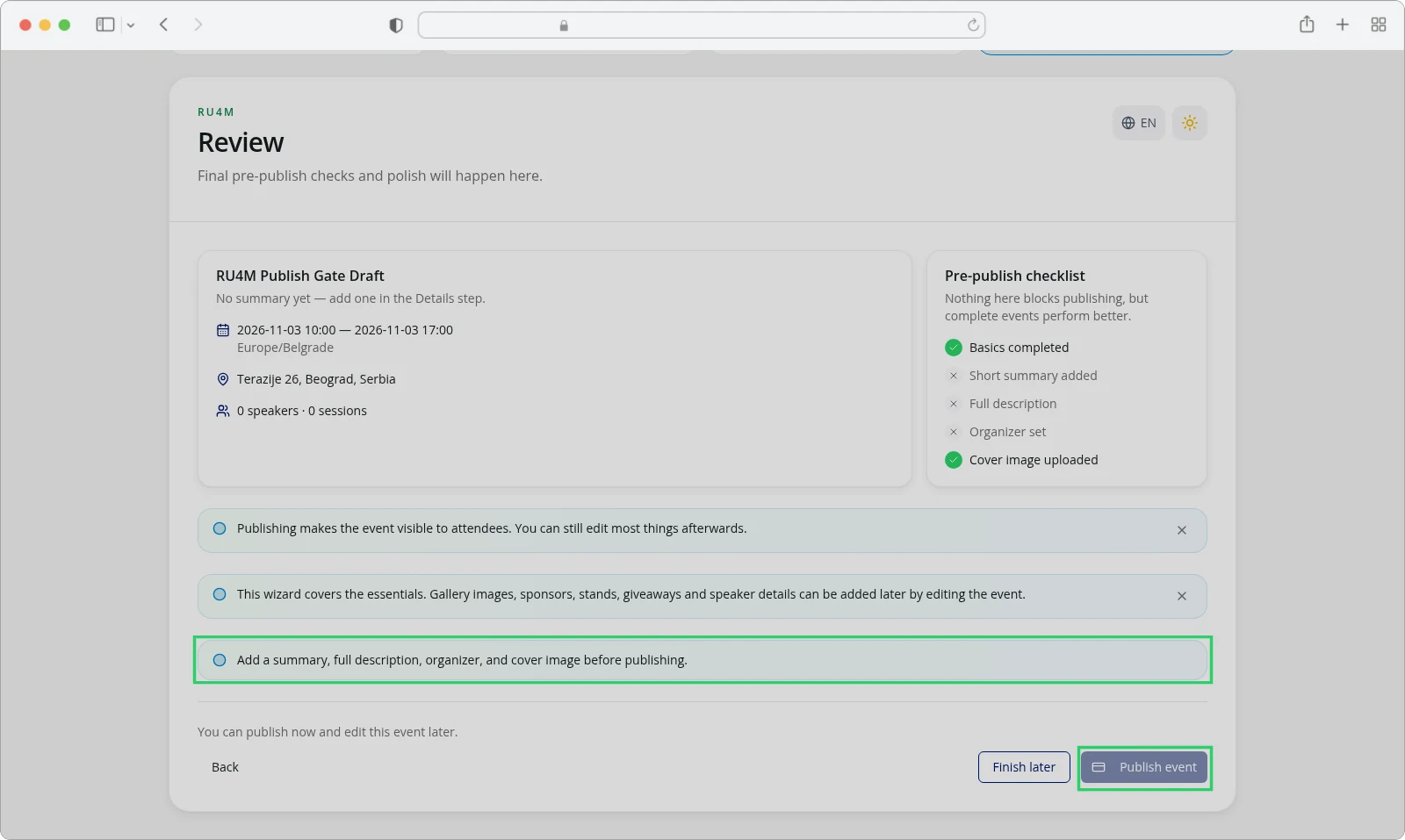
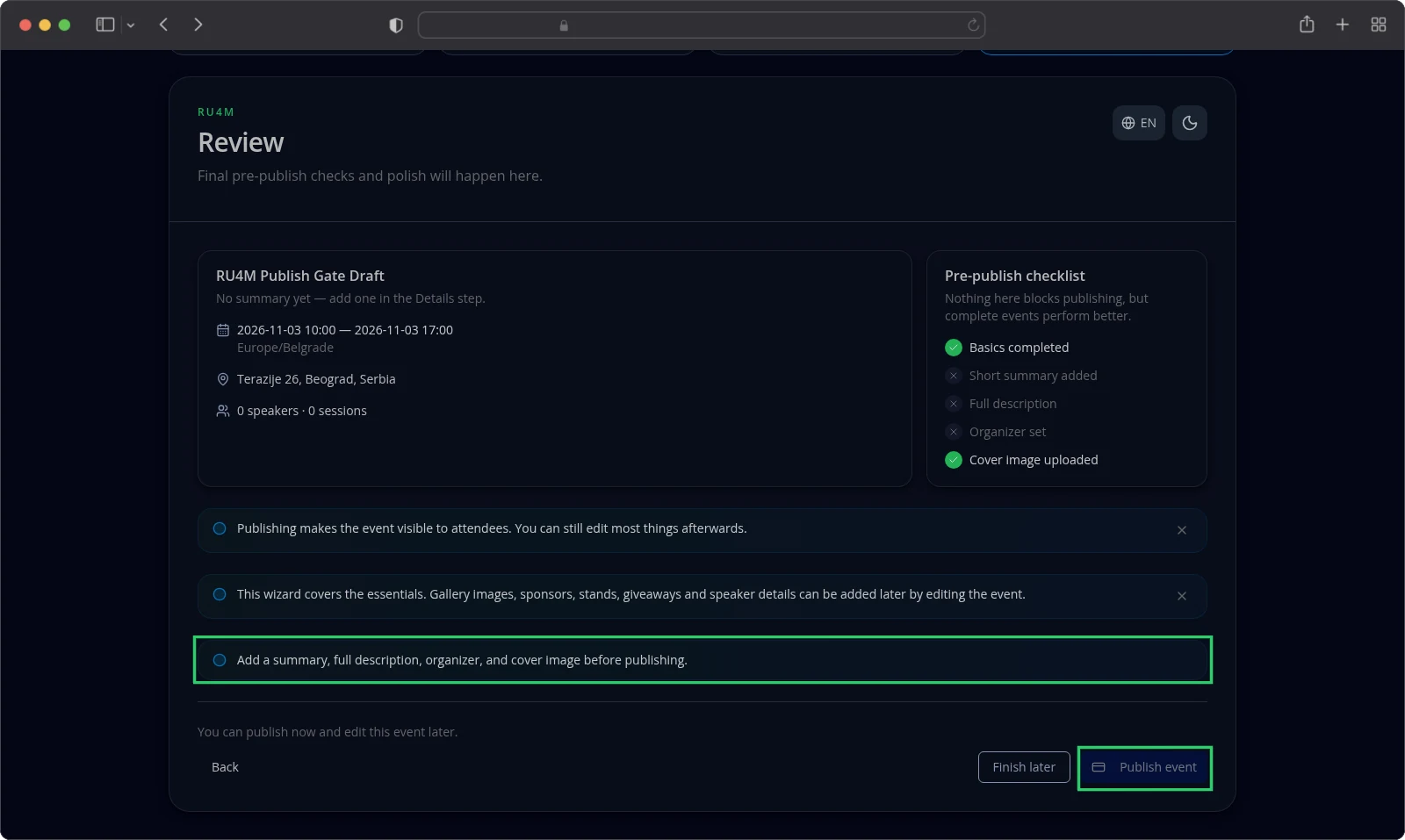
Four items decide whether you can publish: Short summary added, Full description, Organizer set and Cover image uploaded.
While any one of them is missing, the Publish event button stays greyed out and the page tells you: Add a summary, full description, organizer, and cover image before publishing.
Basics completed also appears in the list, but it does not block publishing.
Keep a draft and come back later
Select Finish later on the Review step. Your event returns to your events list with the status DRAFT.
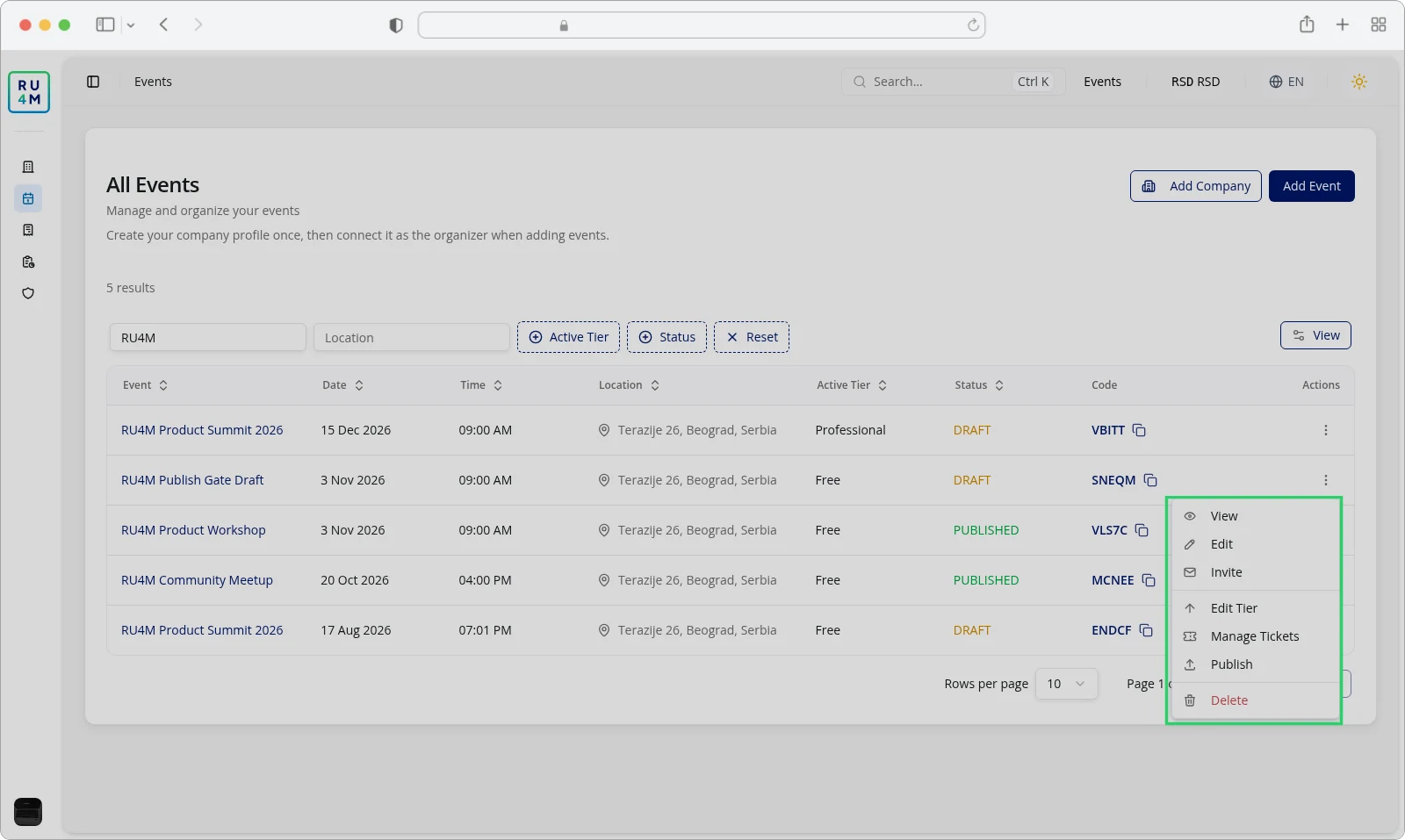
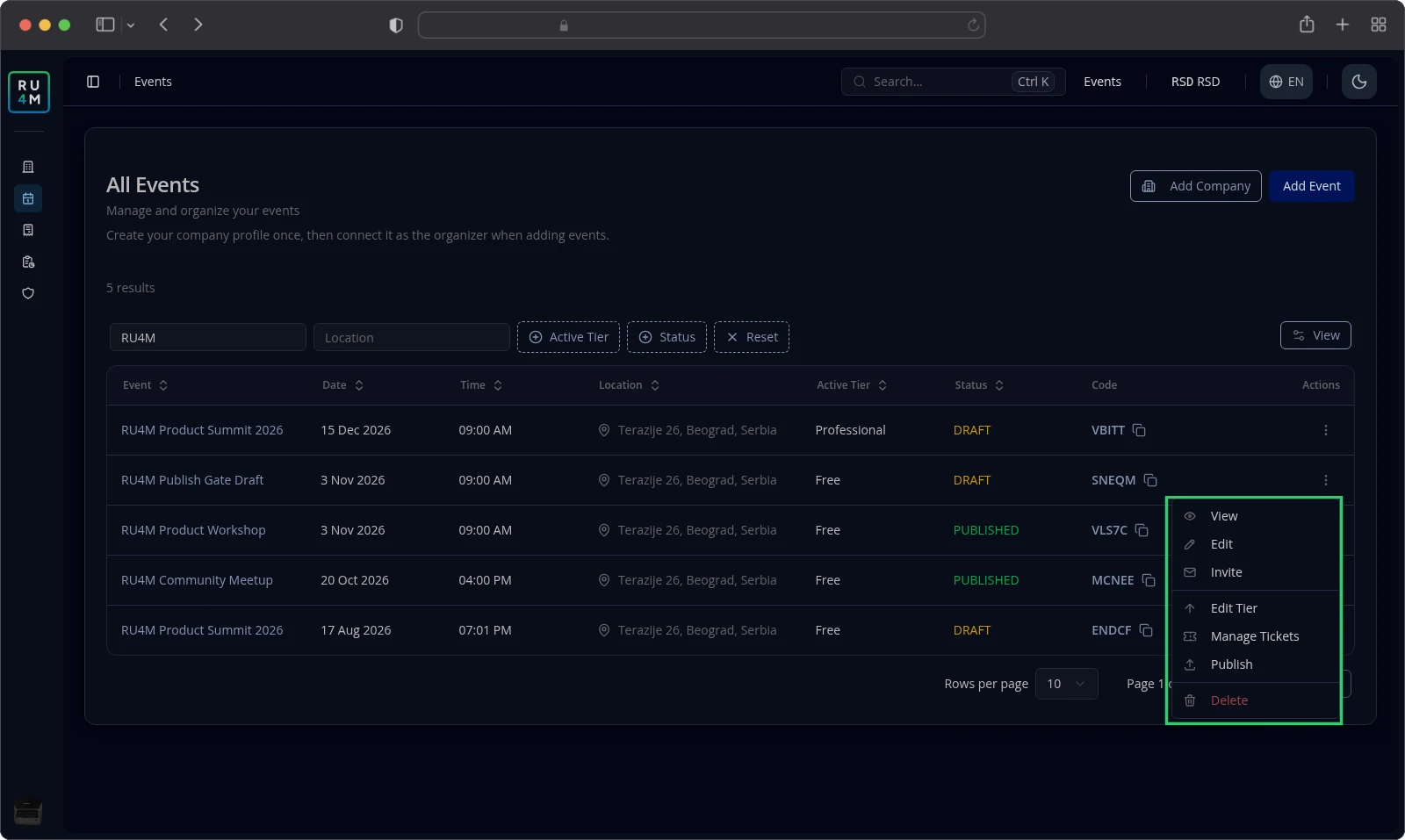
The row menu opens the actions for that event. Choose Edit to open its edit form, or View to see the public page.
To pick the draft back up, choose Edit. The wizard always starts a new event, so it never reopens the one you saved.
See Editing basic details for the edit form, and Event statuses for what each status means.
Visibility and publishing
Choose who can see the event
The Privacy switch in the Basics step decides how far your event reaches.
A Public event is readable by anyone, including people who are not signed in. A Private event is readable only by its members, by people who joined with the event code, and by the people who manage it.
Global search hides private events from everyone else. Invitations and the event code are the way in, so see Event code and QR codes.
You can still change privacy after the event exists, through the event's privacy control. See Editing basic details.
Publish from three places
You can publish from the wizard's Publish event button, from the event page's Publish button, or from the row menu in your events list.
All three check the same four essentials. If one is missing, publishing is refused and the message names the one you still owe.
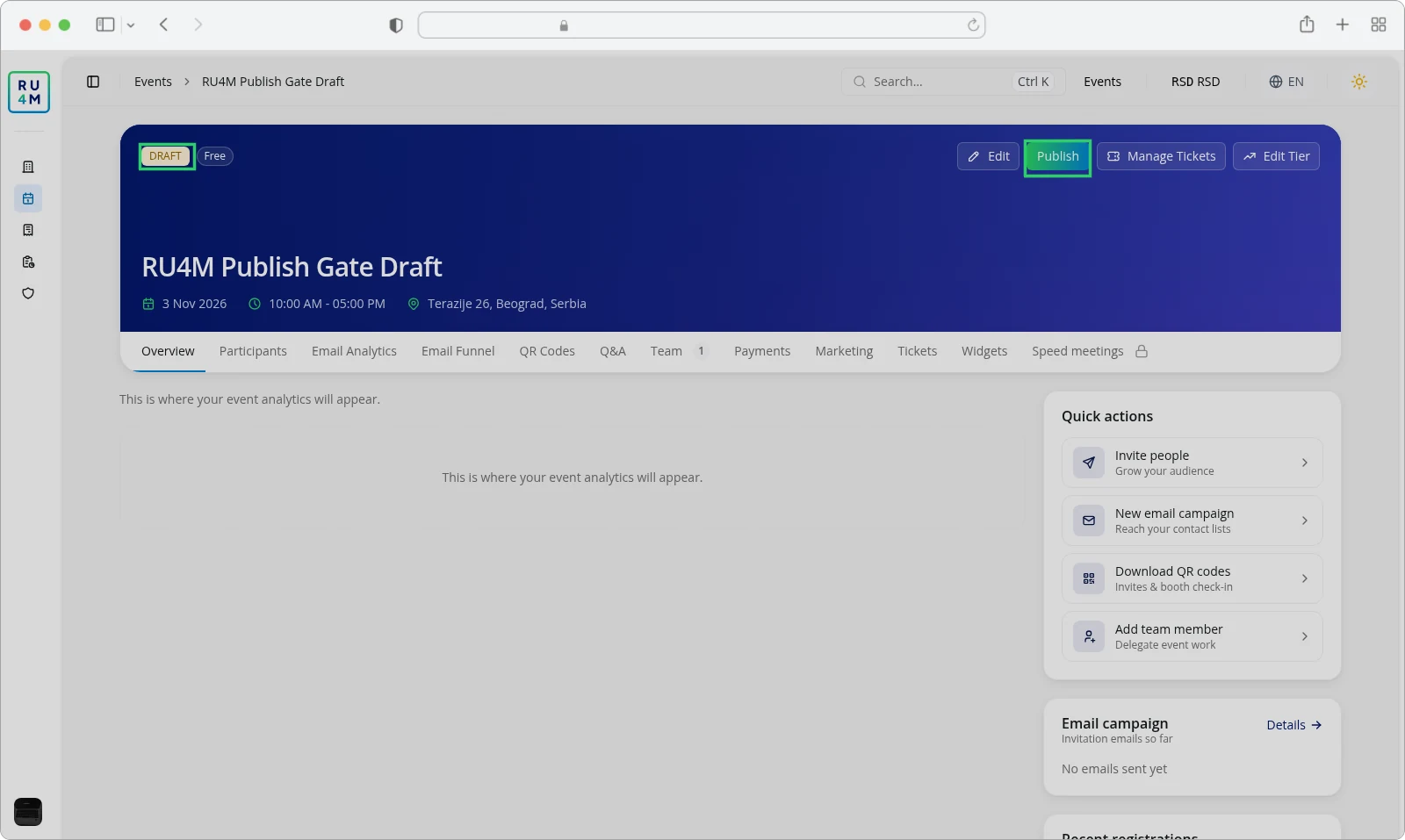
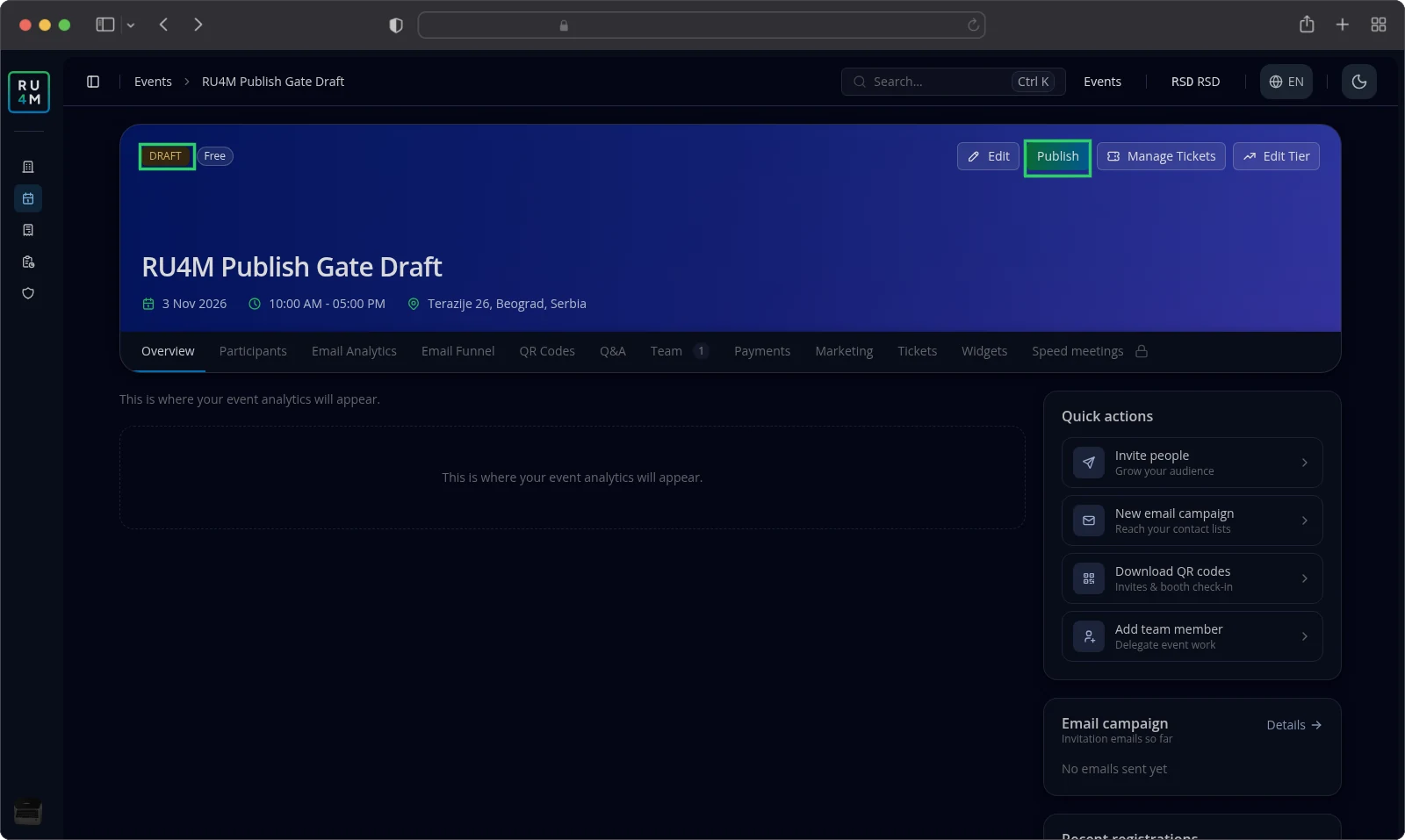
Once the event publishes, Backoffice confirms with Event published successfully and the badge changes to PUBLISHED. Attendees can now find the event and register.
Pay before you publish a paid package
When your package has a price you have not paid, the button reads Proceed to Payment instead. Pay first, and the event reaches PAYMENT COMPLETED before you can publish it.
See Packages and payment for prices and allowances.
Events that have already ended
You cannot publish an event whose end date has passed. The button is disabled and reads Cannot publish or proceed to payment for past events. An event that is still running can be published, so publish before it ends.
Read the status badges
DRAFT means the event is still yours to finish. PAYMENT COMPLETED means a paid package is settled and the event is ready to publish. PUBLISHED means the event is live.
The public event page and sharing
Open the page your attendees see
Choose View in the events list row menu to open the public event page.
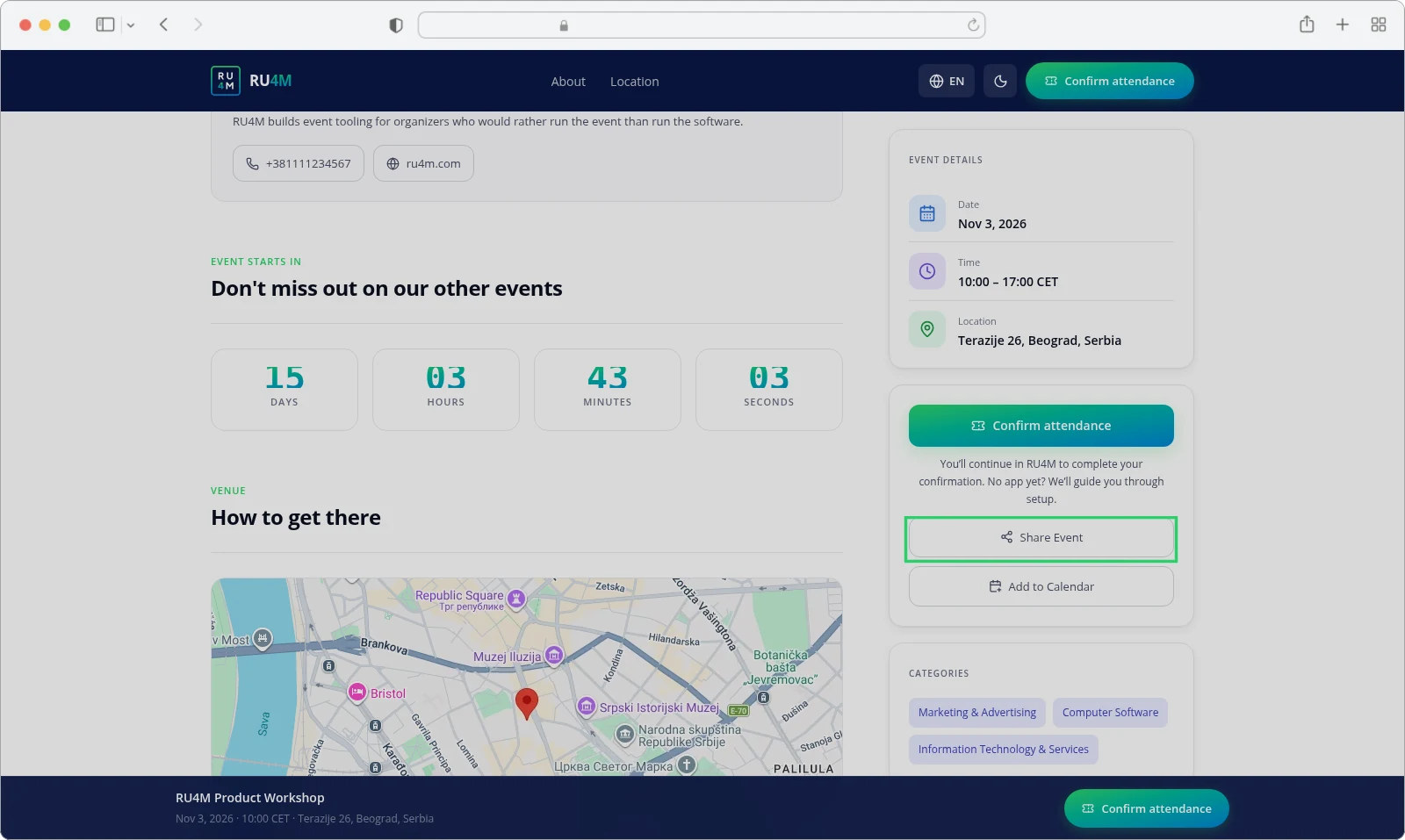
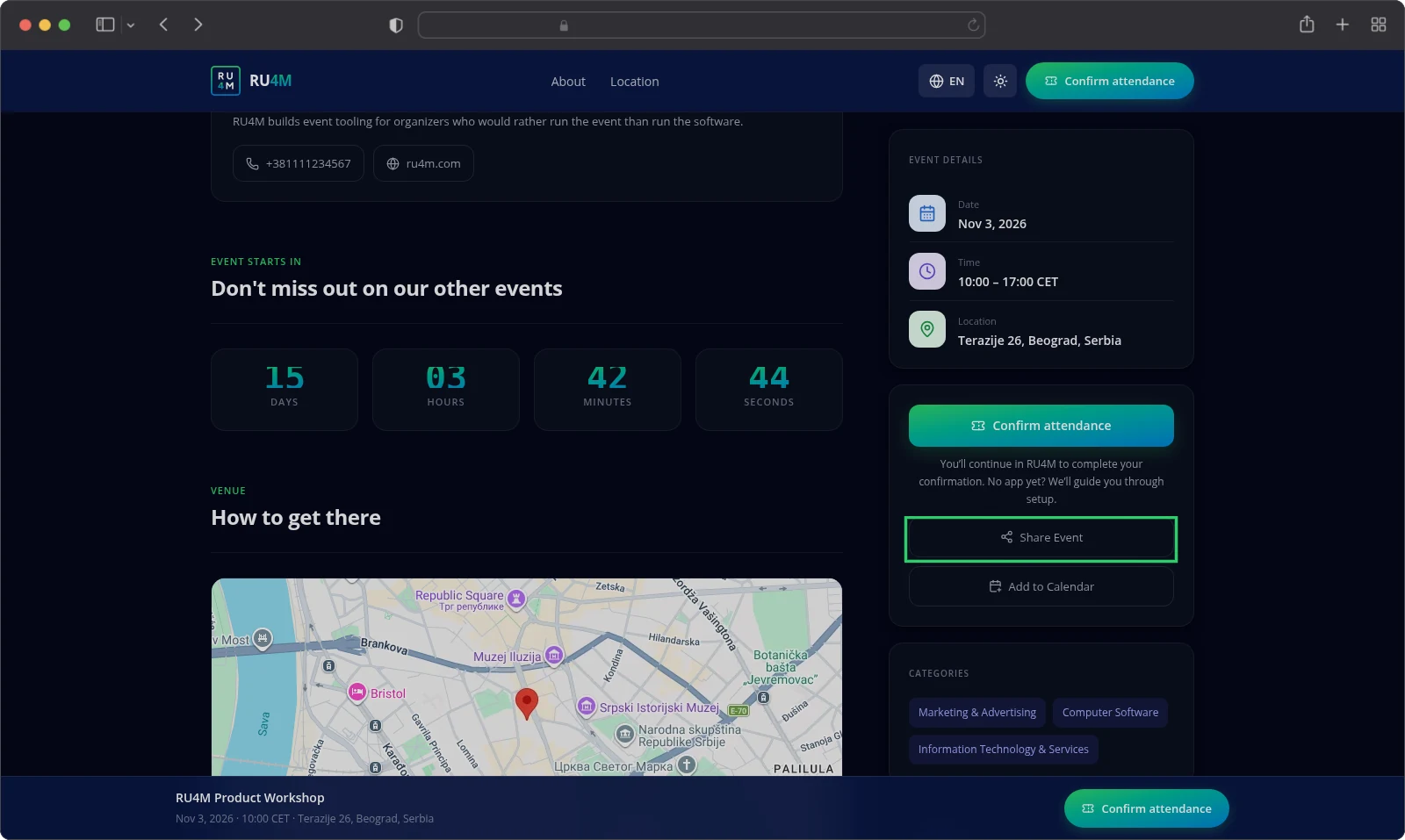
The page carries your cover image, title, dates, location, full description and organizer. Attendees register from here.
Share the link
Select Share Event on the public event page. The app shares the link through your device's share sheet, or copies it and confirms Link copied to clipboard.
While the event is published and has not ended, the shared link is the invite link. That is the same link the event's QR code points to.
After the event ends, the app shares the page address instead. See Event code and QR codes and Sending invitations.
Troubleshooting
Continue does nothing on the Basics step. The location still needs an address you pick from the suggestions, or the cover image is missing.
A step asks you to create the event in Basics first. The event does not exist yet. Return to Basics and select Continue once.
The Publish event button stays greyed out. One of the four essentials is still missing. The page names them.
The button reads Proceed to Payment instead of Publish. Your package has a price you have not paid.
The Publish button is disabled on an event that has passed. You cannot publish an event after its end date, not after its start.
The shared link opens the page address rather than the app link. The event is not published, or it has already ended.
Changes you typed are gone. You never saved them. Select Continue on each step before you leave it.
Related tasks
- Your first event — the shortest path to a published event.
- Editing basic details — change an event you already created.
- Packages and payment — what each package includes and what it costs.
- Organizer and speakers — fill in the organizer and the speakers.
- Program and sessions — build rooms, sessions and the agenda.
- Event statuses — what each status means.
- Event code and QR codes — the code attendees use to join.
- Sending invitations — invite people once the event is published.