Connecting a company to an event
A company can organize an event instead of a person. Choose one company on the event's Organizer tab, and everyone who manages that company can edit the event.
Before you start
You need to be an Admin or a Moderator of the company. The selector never lists a company where you are only a Member.
| What you can do | Admin | Moderator | Member |
|---|---|---|---|
| See the company in the selector | Yes | Yes | No |
| Choose it as the event organizer | Yes | Yes | No |
| Edit every event the company organizes | Yes | Yes | No |
| Publish those events | Yes | Yes | No |
Any package works here. The Organizer tab sits on every event.
When you create an event, the Company field is required. When you change an existing event, only Organizer Name is required.
Where the company field is
Open the event and choose Edit. Select Advanced, then open the Organizer tab.
The tab is titled Organizer and reads "Set the organizer's name, description, image, and company." The Company field sits at the top of it.
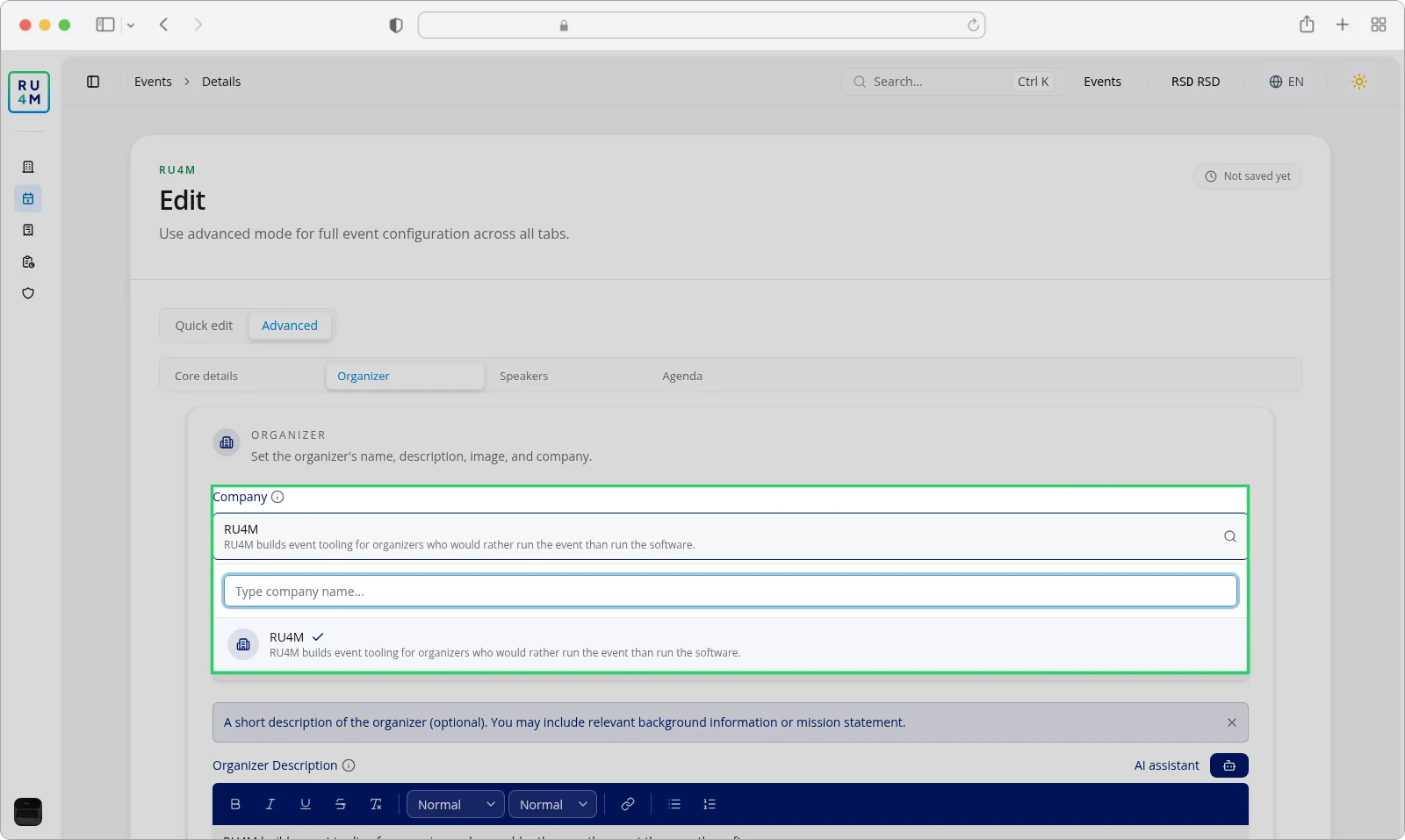
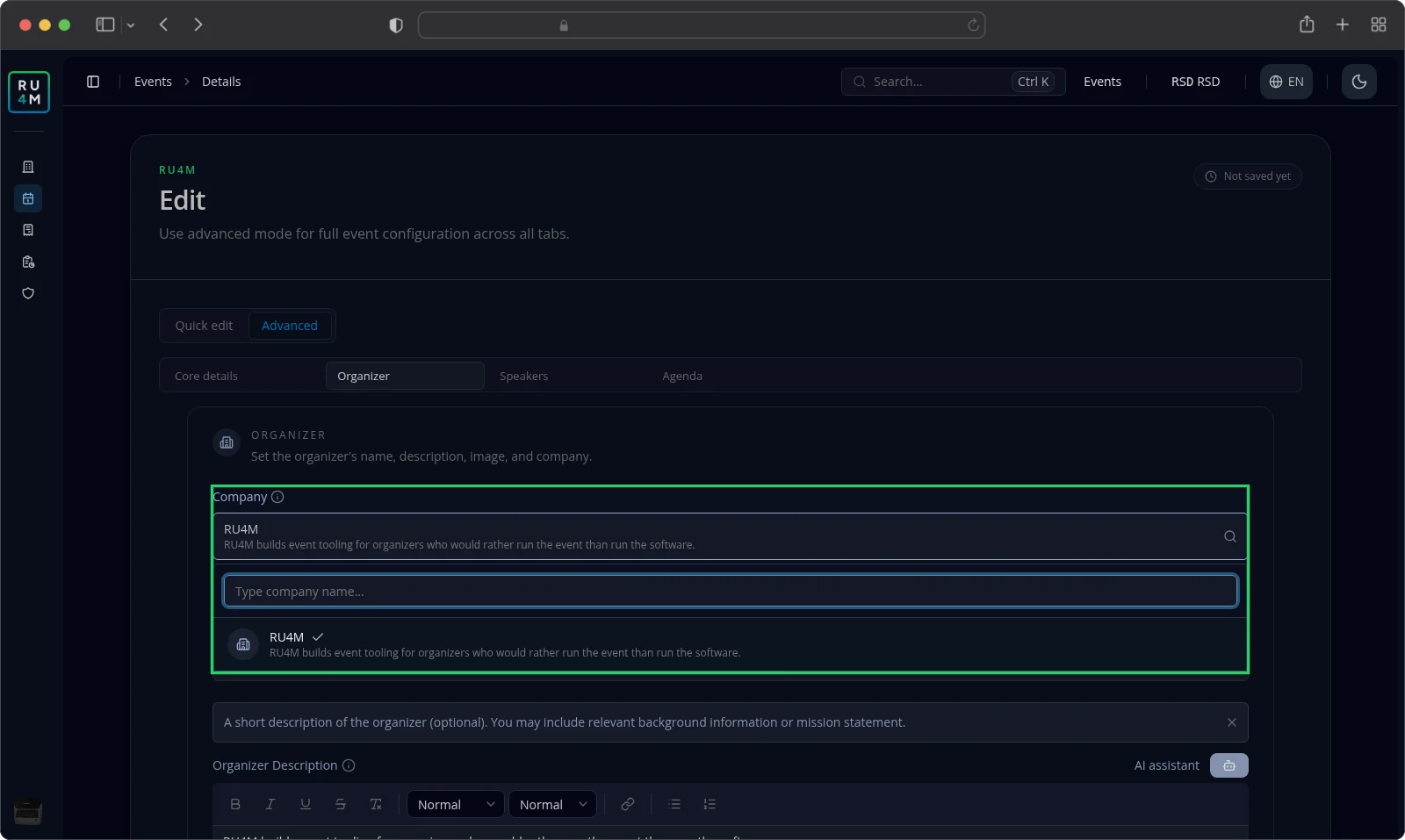
The green box marks the Company field and its list.
Choosing a company as organizer
- Open the event and choose Edit.
- Select Advanced.
- Open the Organizer tab.
- Select the Company field.
- Find your company in the list.
- Select your company.
- Select Save.
The list opens on your companies straight away. Type at least two letters to shorten it.
What choosing a company fills in
Choosing a company fills Organizer Name, Organizer Description and Organizer Image from that company. You can still change every value for this event.
The Company field carries an info button. Select it to read that the search covers only companies you manage.
When no company matches
The list shows up to ten companies. Search by name to shorten it.
- Type at least two letters that match nothing you manage, and the list reads No managed companies found.
- Leave the field empty and own no company, and it reads You do not have any managed companies yet. Type a name to add one.
Type at least two letters of a new name, and Add company "{name}" appears. Select it to create the company and choose it at once. The company profile guide covers that dialog.
What your company role gives you
An Admin and a Moderator of the organizer company get the same rights on the event. You can open it, change its details and publish it.
Two things stay with the person who created the event:
- acting as the event's owner
- changing the event's ads
A Member of the organizer company gets no rights on the event.
These rights cover the event itself. Roles that hand colleagues access to one event only work separately. The team and roles guide covers them, and it is still in preparation.
Changing the company later
You can change the Company on the Organizer tab at any time. Everyone who managed the old company loses access, and everyone who manages the new one gains it.
Check who manages the new company before you save. A change can lock you out of your own event.
Troubleshooting
The app reports "You do not have permissions required to edit this event!" You do not manage the company you chose, or you cannot edit this event. Ask a company Admin for the role.
Your company is missing from the list. You are a Member, not an Admin or a Moderator. Ask an Admin to raise your role.
The list reads "No managed companies found." You typed the name of a company you do not manage. Clear the field to see your own companies.
The app reports "Failed to save your changes. Please try again." Nothing was saved. Try again.
The app reports "Failed to create company." The company was not created. Try again.
Related tasks
- Members, invitations and roles — give colleagues the Admin or Moderator role.
- Creating and editing company profile — the details a company fills in.
- Team and roles — colleagues who help at one event. Still in preparation.
- Roles and permissions — every role in Backoffice. Still in preparation.