Members, invitations and roles
A company is more useful when other people work in it. As the company's Admin, you invite colleagues by email, give each of them the right role, and remove the ones who no longer need access.
Before you start
You need to be the company's Admin. Only an Admin sees the invite field and the per-member menu. A Moderator can edit the company's details but not its members.
You become the first Admin when you create the company. Invite colleagues afterwards and give each one the role their work needs.
| What you can do | Admin | Moderator | Member |
|---|---|---|---|
| See the company in the Backoffice | Yes | Yes | No |
| Edit its details, address and logo | Yes | Yes | No |
| Invite members, change roles, remove members | Yes | No | No |
| Use it as an event organizer | Yes | Yes | No |
| Delete the company | Yes, unless you are the only Admin | No | No |
The Roles and permissions guide covers the same rights in more detail. It is still in preparation.
Where the team appears
Open your company from the sidebar, or from the companies list. The Team members card sits under the company's details.
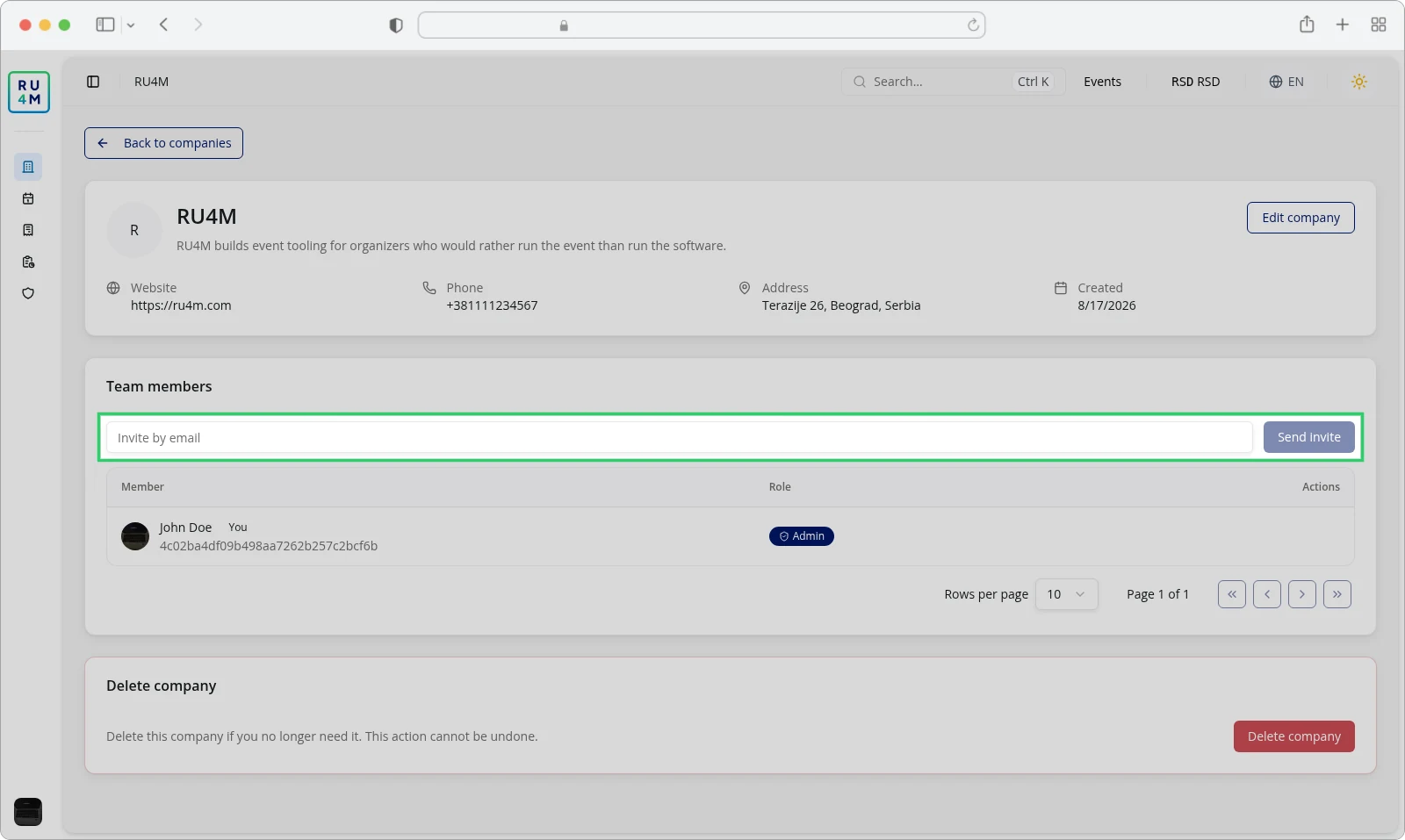
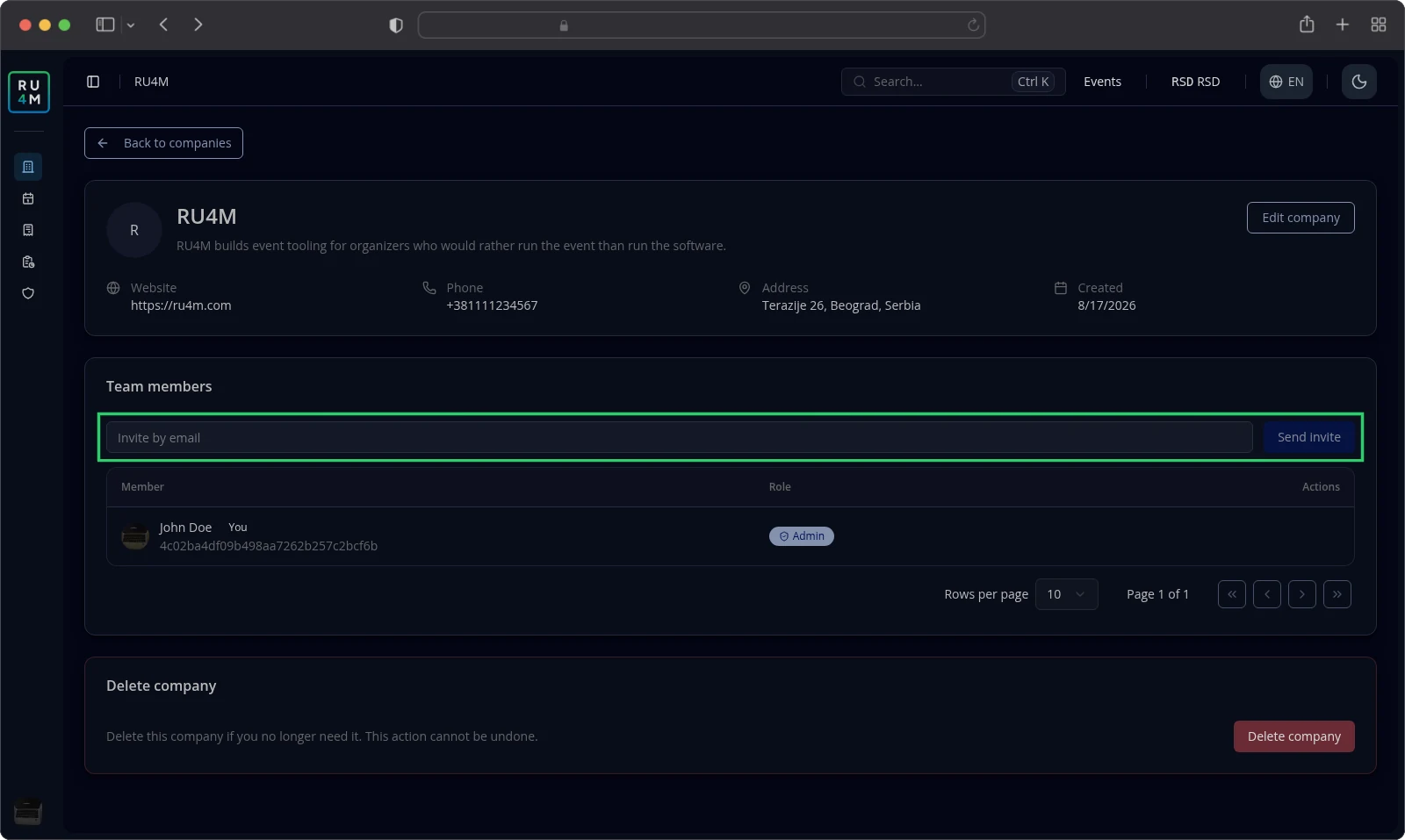
The card holds two things:
- an invite field and the Send invite button, which only an Admin sees
- a table with the columns Member, Role and Actions
Each row shows the person's name and a role badge. Your own row also carries a You badge, and it has no menu.
The table shows ten members at a time and carries its own page controls.
Inviting members
An invitation needs the email address of someone who already has an RU4M account. The app looks that address up, and refuses one it does not know.
- Open the company's page and find the Team members card.
- Type your colleague's email address into Invite by email.
- Select Send invite.
The app confirms Invitation sent successfully. and empties the field.
Your colleague receives an email named after your company, with an Accept invitation button. The email shows a date 30 days from sending, but accepting still works after that date.
The person joins as a Member. Change their role afterwards if their work needs more.
The roster lists a new member only after that person accepts. Until then their invitation waits outside the table.
Nothing cancels or resends an invitation. Ask your colleague to accept it, or invite them again if they missed it.
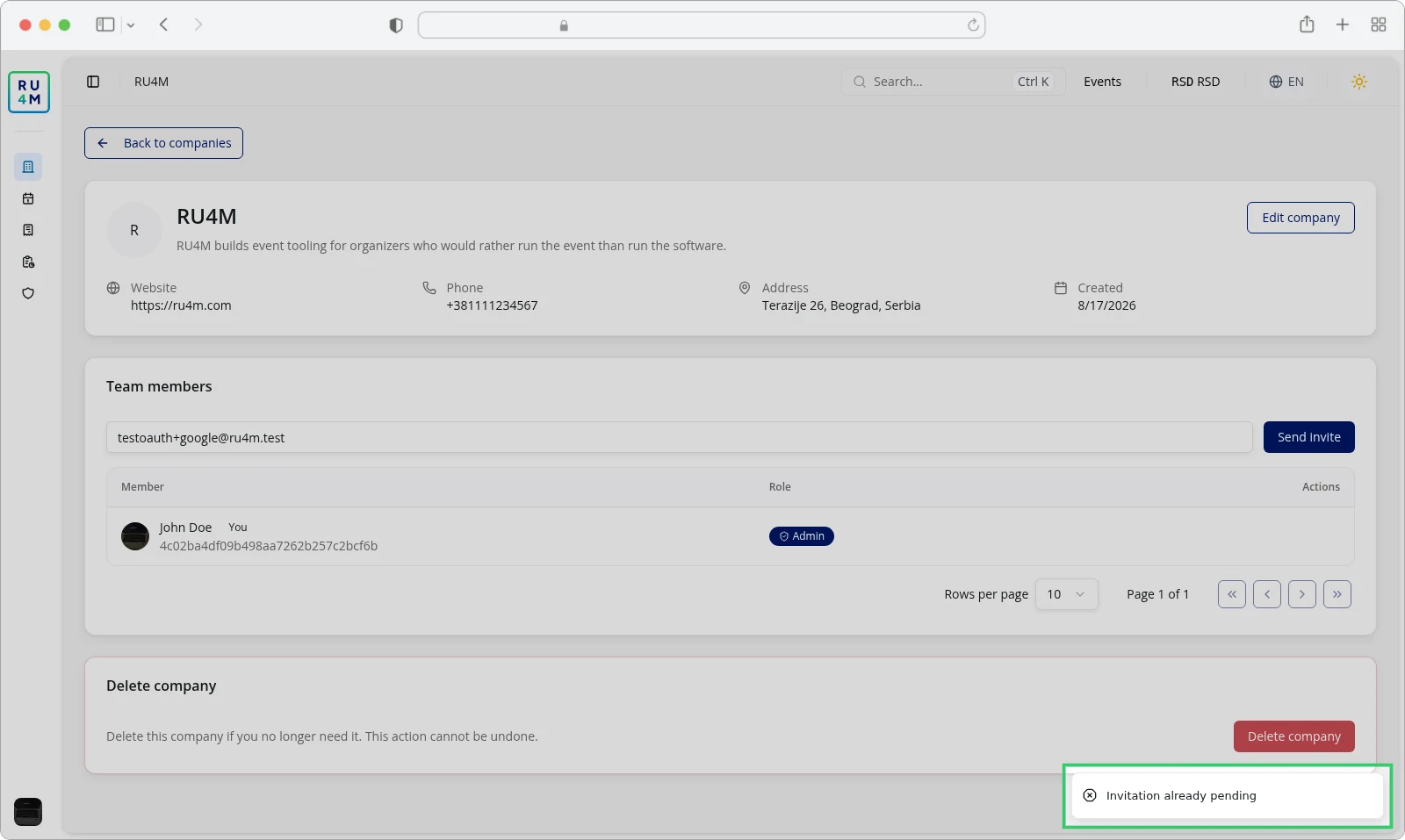
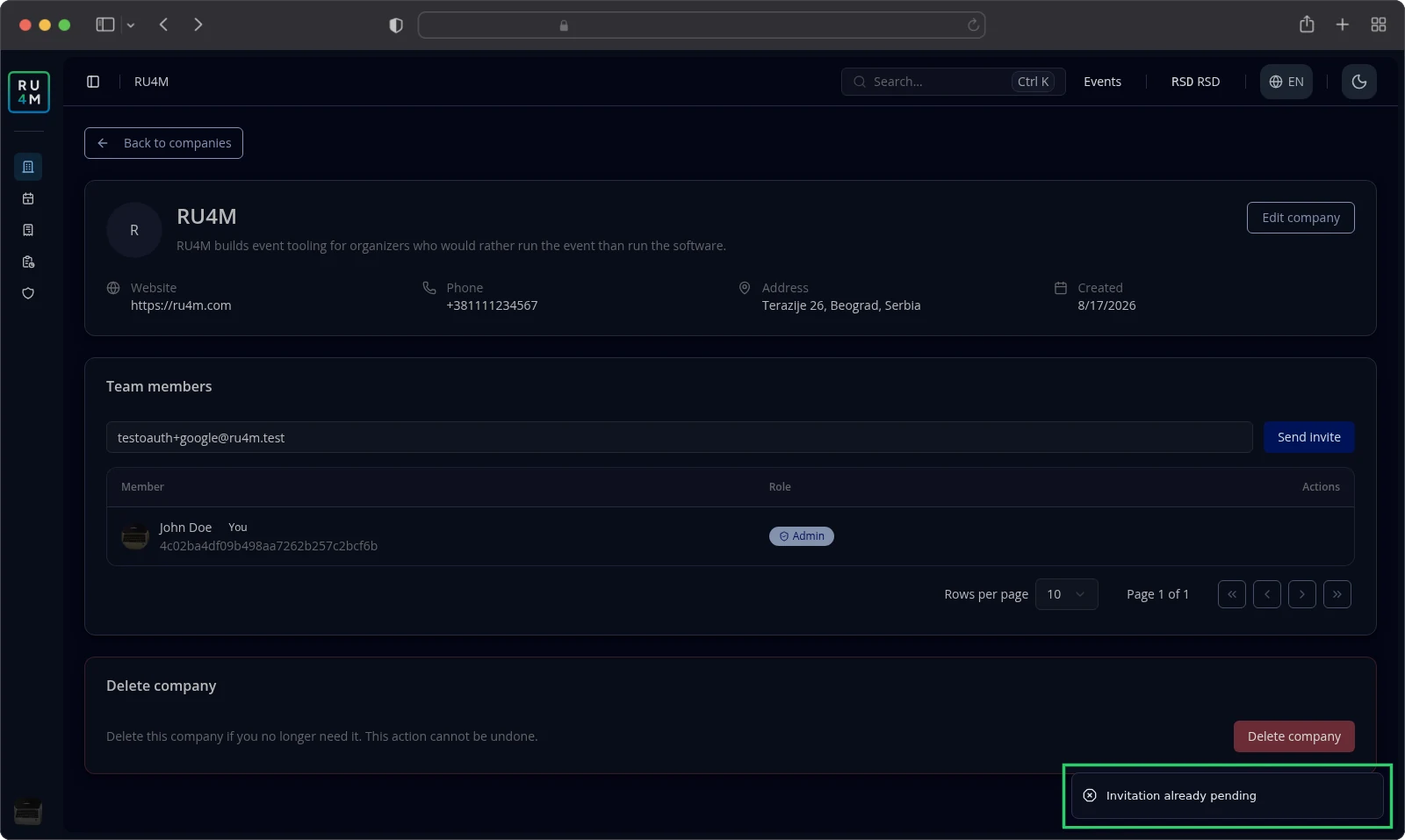
If the address already belongs to a member, the app reports User is already a member. If an unanswered invitation already exists for that person, it reports Invitation already pending.
Changing member roles
A role decides what someone may do in the Backoffice. Use the table above to choose one.
- Find the member's row in the Team members card.
- Select Change role on that row.
- Choose Make admin, Make moderator or Make member.
The menu offers only the two roles the person does not hold yet. The change applies at once, and the app confirms Member role updated.
Your own row carries no Change role button, so you cannot change your own role here.
Removing members
Removing someone takes away their access to the company and to its events. It sends no email.
- Find the member's row in the Team members card.
- Select Change role on that row.
- Select Remove.
The person leaves the table at once, and the app confirms Member removed.
Nothing asks you to confirm, so check the row before you select Remove. To restore that access later, invite the person again.
Troubleshooting
You cannot see an invite field or a menu beside a row. You are a Moderator or a Member. Ask an Admin.
The app reports "User does not exist." That address has no RU4M account yet. Ask the person to register first, then invite them again.
The app reports "Invitation already pending". An earlier invitation to the same person waits for an answer. Wait for their reply.
The app reports "User is already a member". The person is on the roster already. Change their role instead of inviting them again.
The app reports "Failed to send invitation". Nothing was sent. Try again.
The app reports "Failed to update member role". The change was not saved. Try again.
The app reports "Failed to remove member". The person is still a member. Try again.
An invited person is missing from the table. They have not accepted the invitation yet.
The card reports "Team members could not be loaded". The table did not load. Reload the page.
Related tasks
- Creating and editing a company profile — the company page this guide starts from.
- Connecting a company to an event — use the company as an event organizer.
- Deleting a company — remove a company you no longer need.
- Managing the event team — colleagues who help at one event rather than in the company. Still in preparation.
- Roles and permissions — what each role may do. Still in preparation.